
Step 1: Navigate to https://portal.cybasp.com, left-click, and hold the cursor on the lock icon in the left corner of the search bar.
Note: Depending on your browser, you will need to click and hold the icon in the left corner of the navigation bar at the top of the browser window.

Google Chrome:
Step 2: Drag the lock icon to the desktop
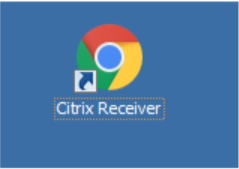
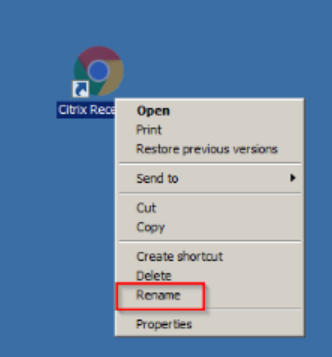
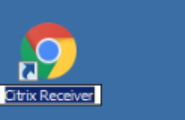
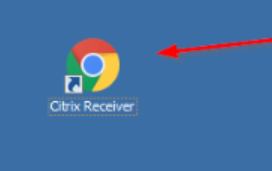
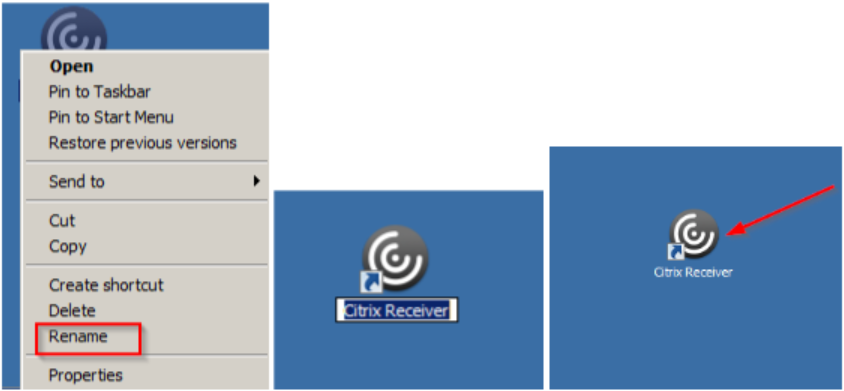
Step 3: Right-click on the shortcut and select “Rename” to edit the shortcut display name. Click enter to save.
Internet Explorer:
Step 1: Navigate to https://portal.cybasp.com, left click, and hold the cursor on the Citrix receiver icon in the left corner of the search bar.

Step 2: Drag the citrix receiver icon to the desktop
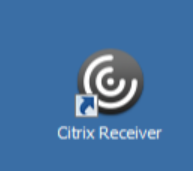
Step 3: Right-click on the shortcut and select “Rename” to edit the shortcut display name. Click enter to save.
Mozilla Firefox:
Step 1: Navigate to https://portal.cybasp.com, left-click and hold the lock icon in the left corner of the search bar.

Step 2: Drag the lock icon to the desktop
Step 3: Right-click on the shortcut and select “Rename” to edit the shortcut display name. Click enter to save.
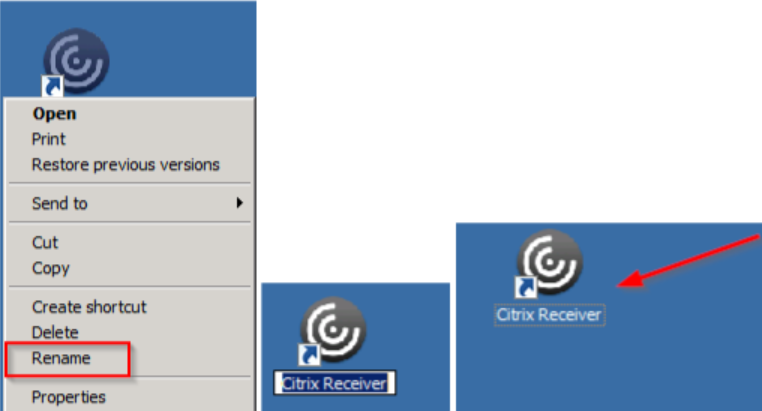
You've got a desktop shortcut that points to the Virtual Desktop!
Comments
0 comments
Article is closed for comments.