
There are 2 main steps needed when setting up access to your Citrix-Hosted Desktop
-
Install Citrix Workspace
-
Log into the web portal
Step 1. Install Citrix Workspace
First, open your browser and navigate to https://www.citrix.com/downloads/workspace-app/
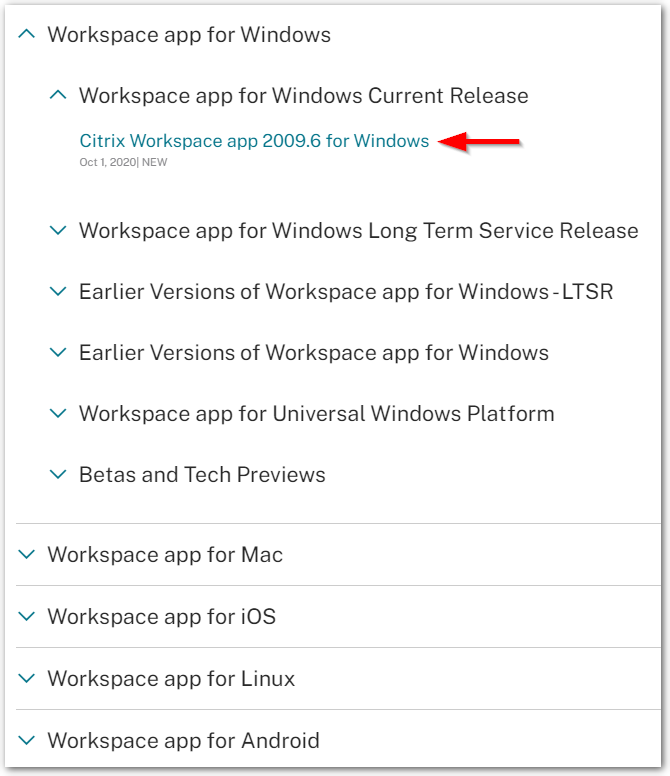
Select the right version for your device (Windows, Mac, Android, etc.) In this example, we will be downloading the Windows version.
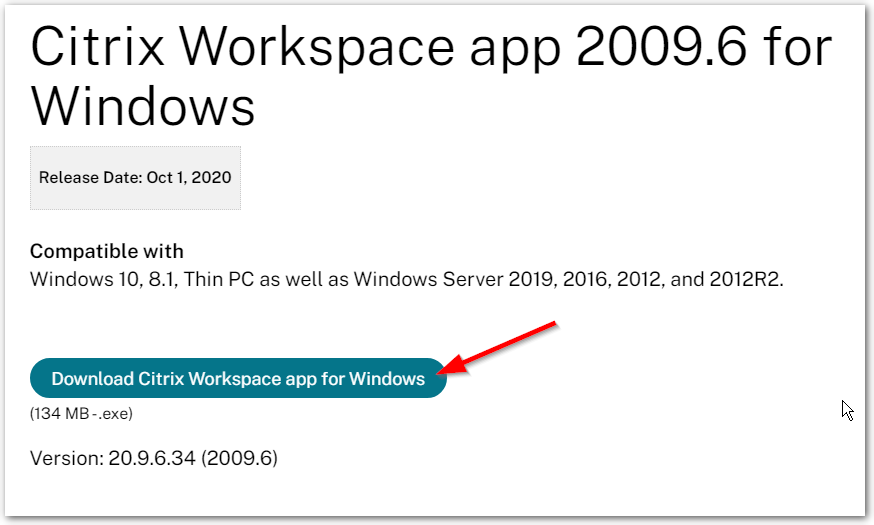
Click on the Download button to download and install Citrix Workspace.
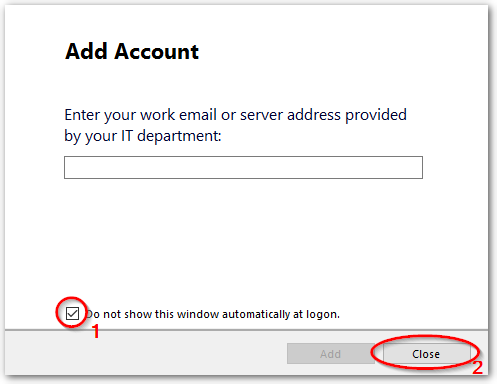
Once installed, if you see a pop-up that says “Add Account”, you can check the box that says “Do not show this window automatically at logon” and hit Close.
Step 2. Log into the web portal
Open your web browser again and navigate to https://portal.cybasp.com
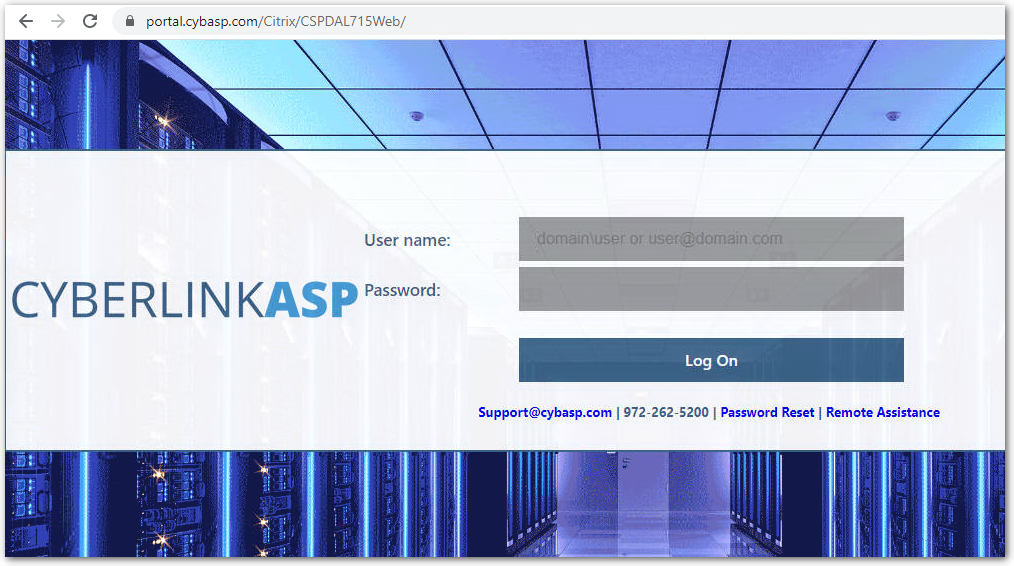
Enter your username and password, then hit Log On
Click on your desktop icon to launch the desktop.
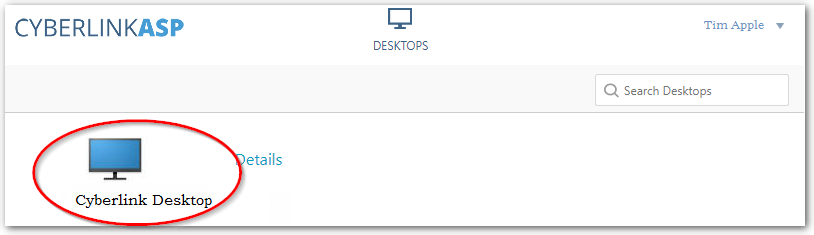
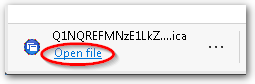
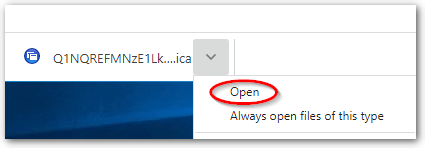
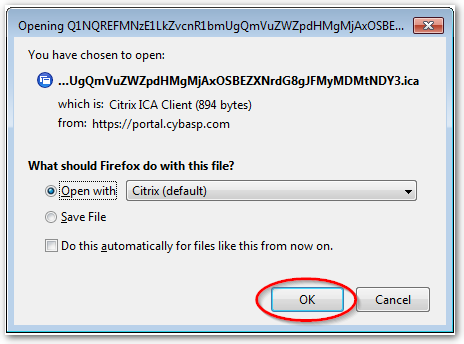
Depending on your browser, you will need to open the downloaded file.
Microsoft Edge:
Chrome:
Firefox:
Now you are connected to your Virtual Desktop!
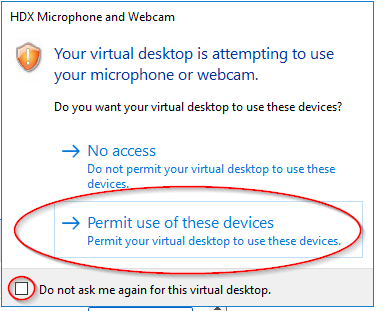
If you see a pop-up that says “HDX Microphone and Webcam”, you can check the box that says “Do not ask me again for this virtual desktop.” and click “Permit use of these devices” to allow access
Comments
0 comments
Article is closed for comments.