
Overview:
- The Customer Support Portal is your view of our ticketing system. Every new call or email is entered and tracked in our ticketing system. This allows us to manage and monitor the workflow and communications between you and our support team. Granting you access to this view allows you to see all new, pending, and closed tickets. This portal also allows you to create new tickets.
Objective:
- The purpose of this article is to explain how to login and navigate the Customer Support Portal.
Login Procedures:
- When your account is activated, an email to setup the password is sent to your email address on file. After the email has been received and the password is reset, you can login by entering support.cybasp.com into your browser address.
- Sign in using your email address and the new password. Select the sign-in option located at the top right of the portal home page.
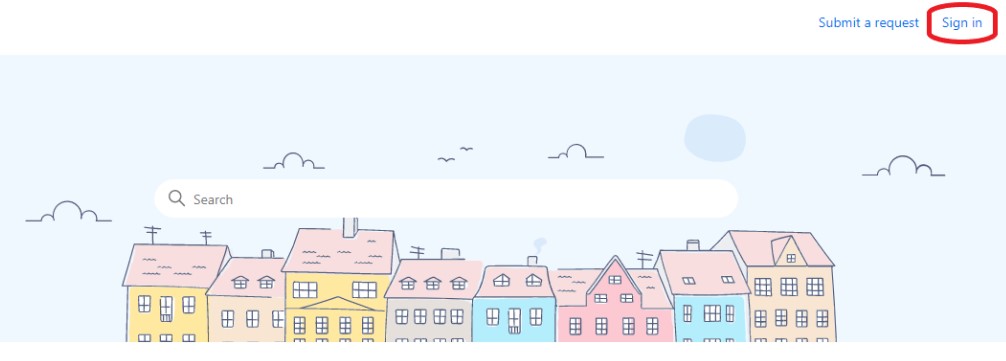
-
If you are creating a bookmark use this link: https://support.cybasp.com/hc/en-us
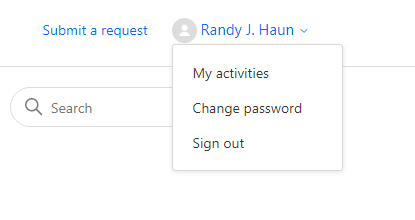
- After logging in select your name in the top right. Use the drop-down and select My activities. Please note that clicking on the lifesaver locate at the top left from anywhere will take you to the home page.
Navigation:
- After selecting My Activities you will see a horizontal two-tiered menu. The tabs across the top are Requests, Contributions, and Following. The second list of options will vary depending on the level of access granted. The main option is My requests.
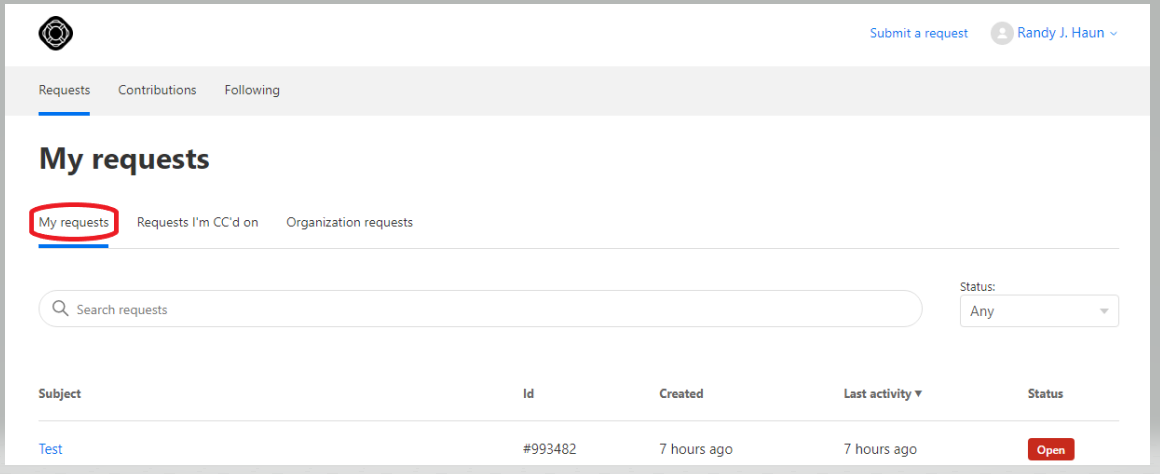
- From here you will be able to see all current and past tickets. These can be searched by using the search tool or a narrowed view based on the status selected.
- All tickets will be set to one of the following three available status options:
- Open = Waiting for Cyberlink to complete or reply to the ticket.
- Awaiting your reply = Ticket is waiting for you to supply additional information or confirmation that the issue has been resolved.
- Solved = Tickets considered as closed/resolved.
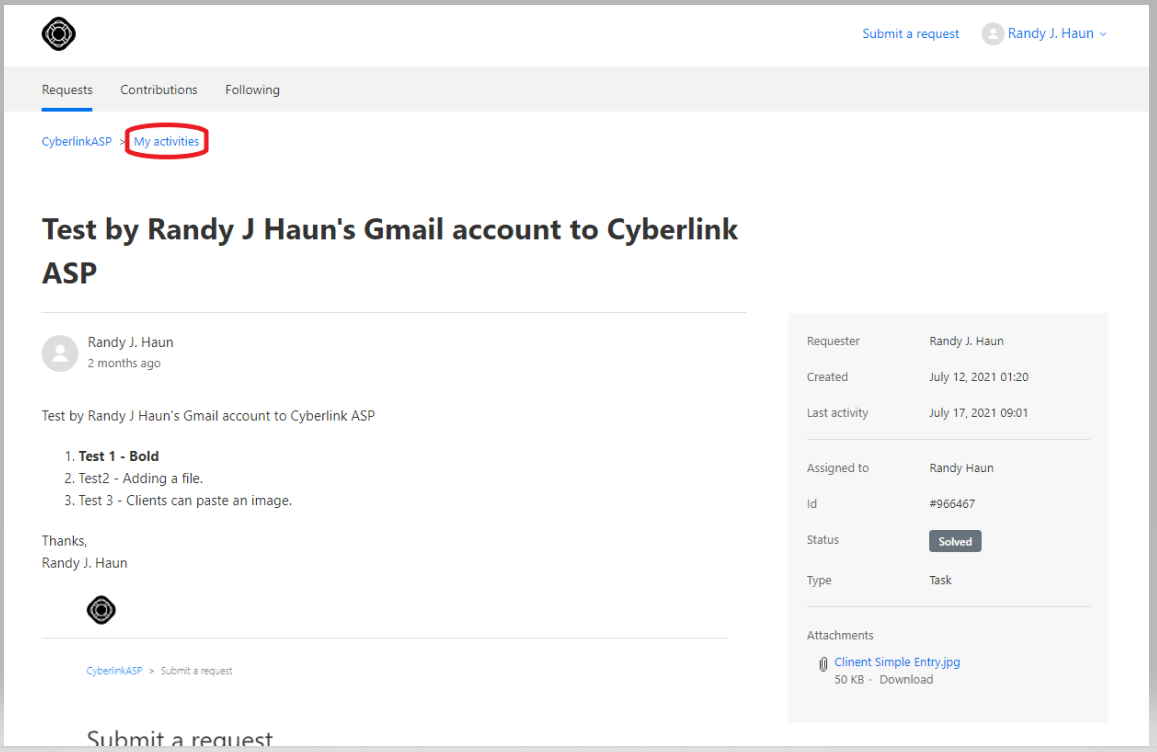
- Selecting any ticket will open the ticket and display the ticket details including all communications between you and support, requester, date created, date last active, the assigned tech, ID, and status.
- To return to the list of tickets, select My activities.
- While on open tickets you can reply directly into the ticketing system by going to the bottom and selecting Add to the conversation.

- Solved tickets can not be reopened after three days. If you are on a solved ticket the bottom will say This request is closed for comments. You can create a follow-up ticket by selecting the text create a follow-up. The follow-up ticket will be related to the original ticket. This should only be done if you feel the item was not resolved. Unrelated issues should not be addressed from here.

Create New Requests:
- Create a new request by selecting the option Submit a request located to the left of your name. If you are not logged in the Submit a request is located to the left of the sign-in.
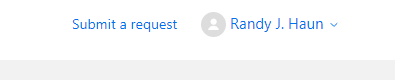
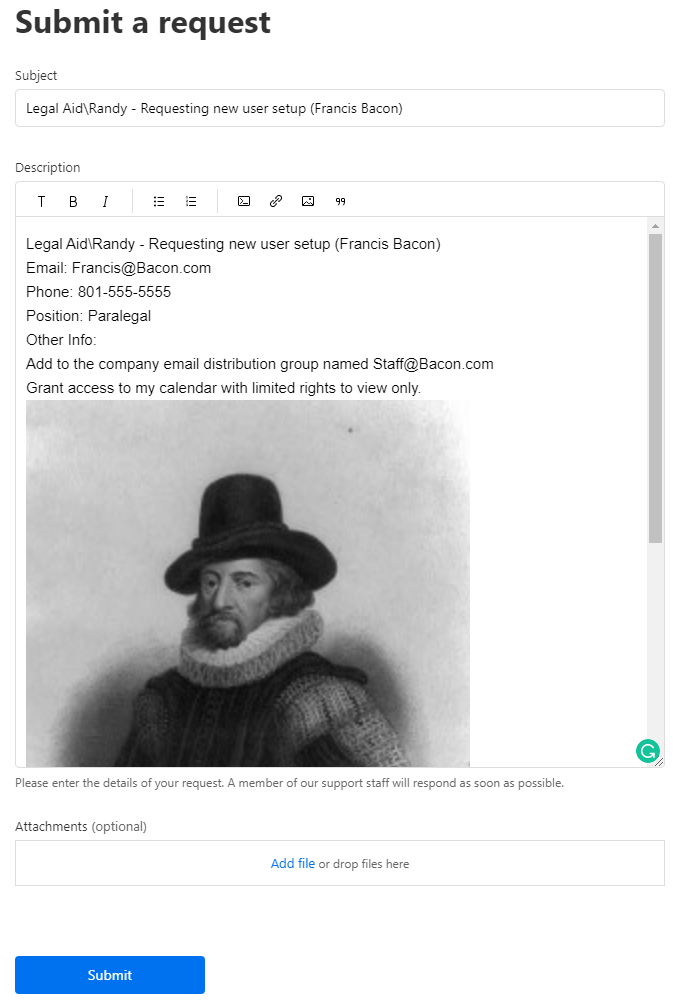
- Please note that new requests can still be submitted when not logged in, but you will be required to enter your email address. Submitting a request when logged in will present a form as shown below. You will enter a subject, provide details in the description box. This allows you to add attachments by using copy and paste or the add via the attachment box by using the link or drag and drop. When complete use the submit button at the bottom.
Comments
0 comments
Please sign in to leave a comment.