
-
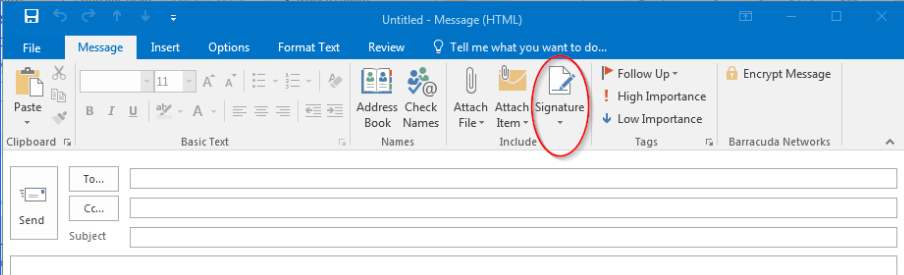
Open a new email message from the Home tab
-
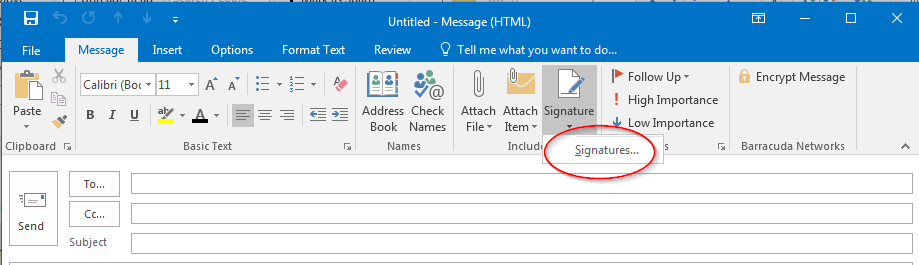
On the Message menu, click Signature > Signatures.
-
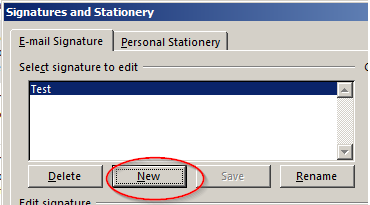
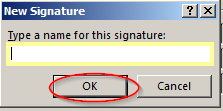
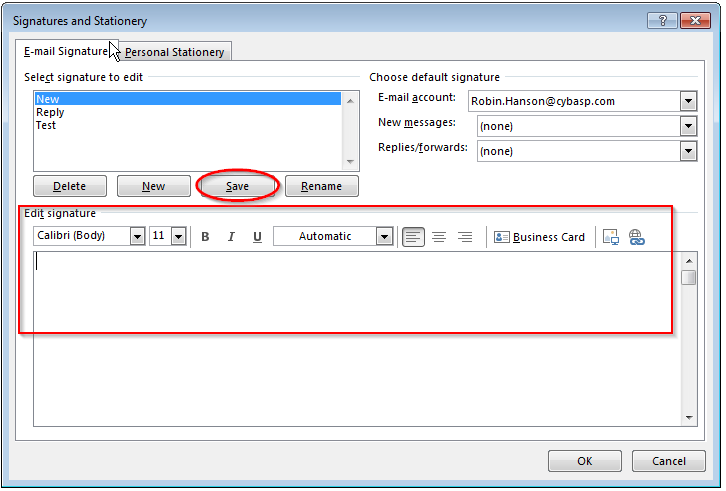
Under Select signature to edit, click “New”, in the New Signature dialog box, type a name for the signature, then click “OK“.
-
Under Edit signature, compose your signature. You can edit fonts, font colors, and sizes, as well as text alignment here. Click “Save” to save your new signature.
-
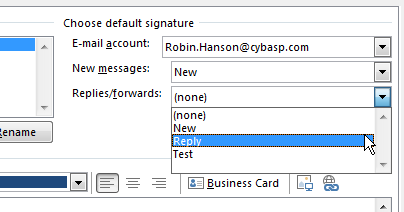
Go to the drop down selection for “New messages:” and select the signature you want to apply for new drafts. If you want a signature to apply for replies and forwarded messages as well, select one here too. Otherwise you can leave this set to (none).
-
When you are done, click "OK"
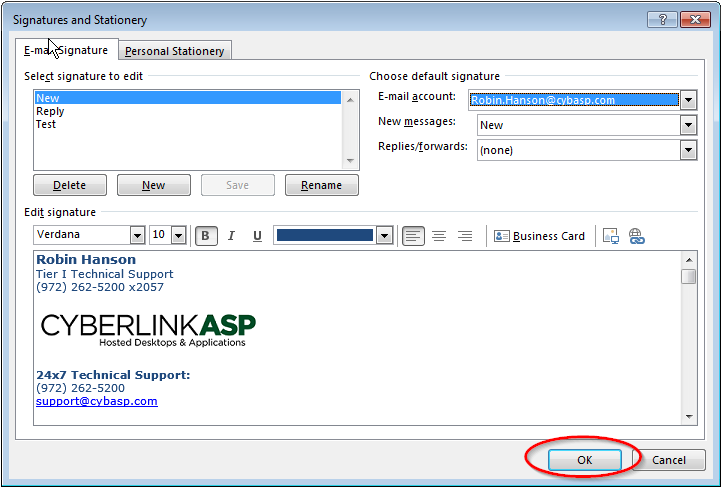
Note: To apply your new signature, create a new email.
For any questions, comments or feedback, email articlefeedback@cybasp.com.
Comments
0 comments
Please sign in to leave a comment.