
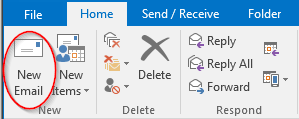
From the Home tab, open a New Email
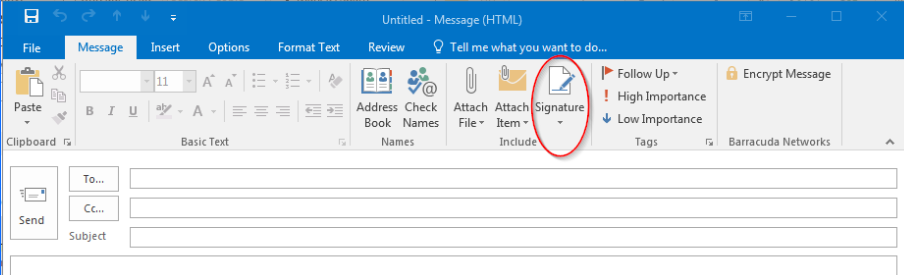
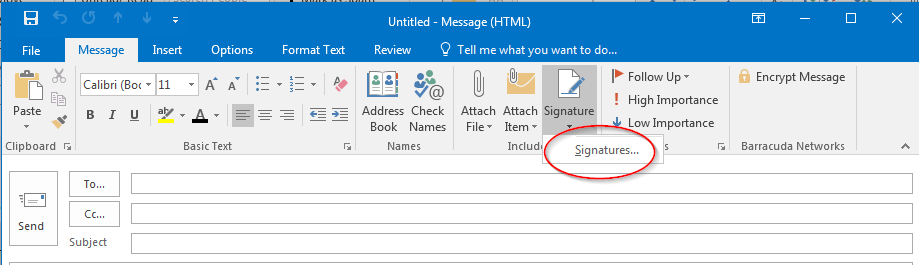
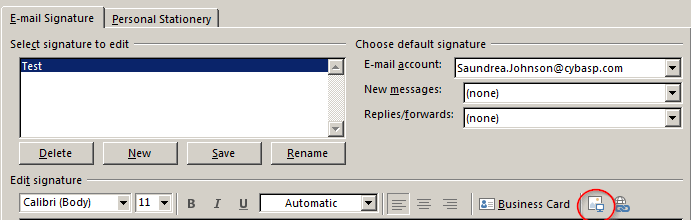
Click “Signature”, then “Signatures”
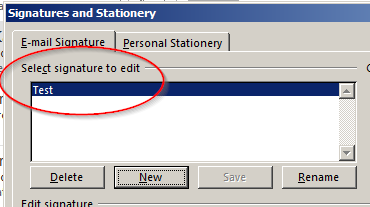
In the Select signature to edit box, choose the signature you want to add a logo or image to
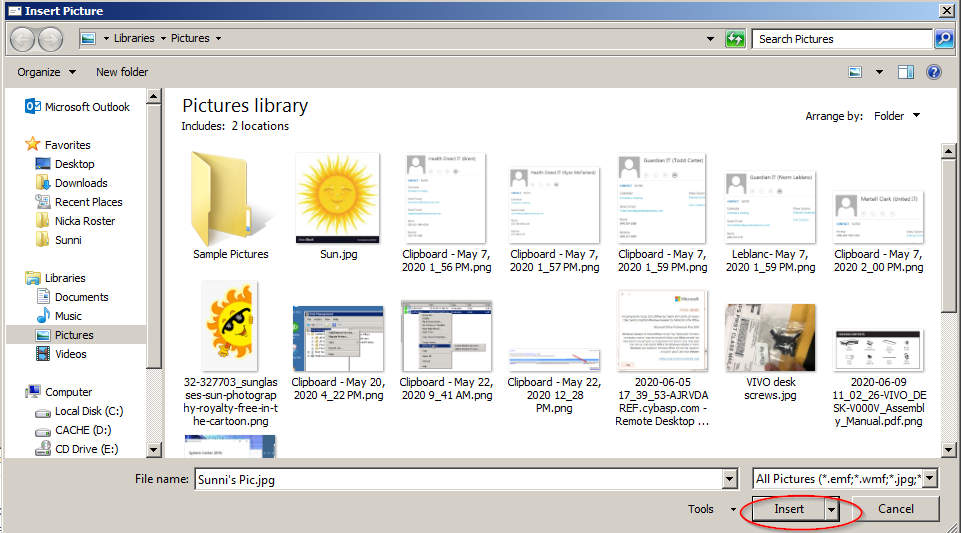
Click the Image icon, select the logo/image, and click “Insert”.
Click “OK”to save the changes to your signature.
Note: To apply the image to your signature, create a new email.
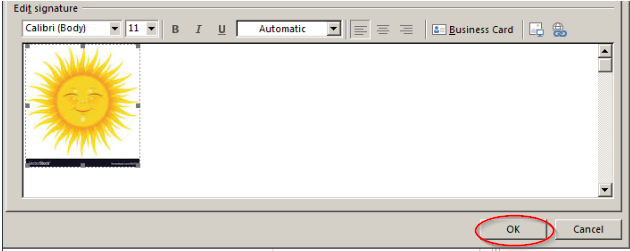
You have successfully added an image to your Outlook signature!
For any questions, comments or feedback, email articlefeedback@cybasp.com.
Comments
0 comments
Please sign in to leave a comment.